Showing posts with label Feit Electric. Show all posts

Tuesday, March 8, 2022

New 3D Printed Sci-Fi Lamp Design

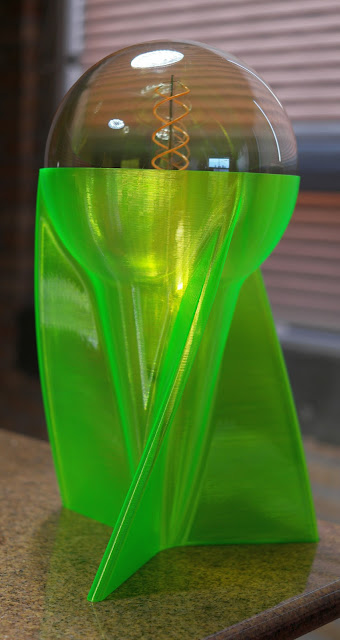
For some reason, I find myself designing and printing a lot of lamps. Here's the latest, designed in Fusion360 to fit a Feit Electric G63 vintage LED filament bulb that is 8" in diameter.

I like combining the antique look of the bulb with a "modern" base- it looks like something out of an old Buck Rogers movie (the movies from the 30s and 40s, not the awful TV series from the 80s).

The lamp base prints in vase mode. I printed it using PETG, a 1 mm nozzle, 1.2 mm line width, 0.5mm layer height, in about 4 hours at 30 mm/sec. Prusa Slicer vase mode has been broken for years and leaves a seam down the side of the print, so I sliced with Cura. No seam at all!

The overall height is 400 mm, the print is 300 mm tall. The bulb barely rises above ambient temperature, even after hours of operation, so there's no danger of melting or softening the PETG print.


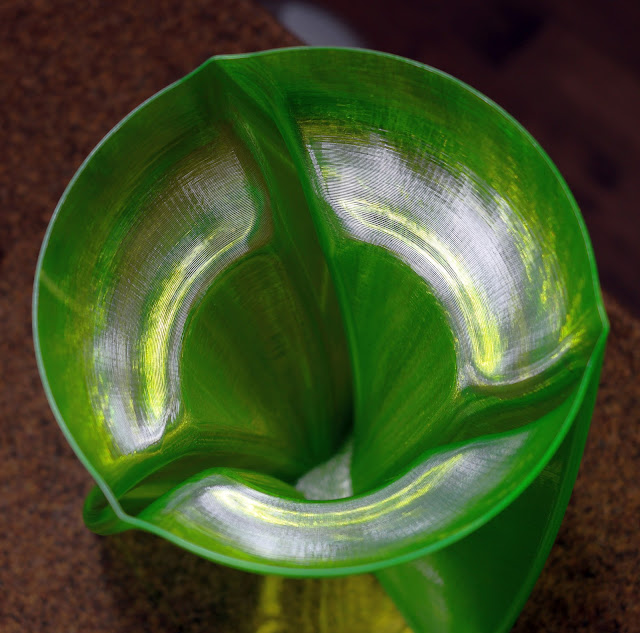
A look down inside the print. You can see the tiny facets that make up the "curved" surface of the print. Maybe I need to export the STL file with even smaller segments.


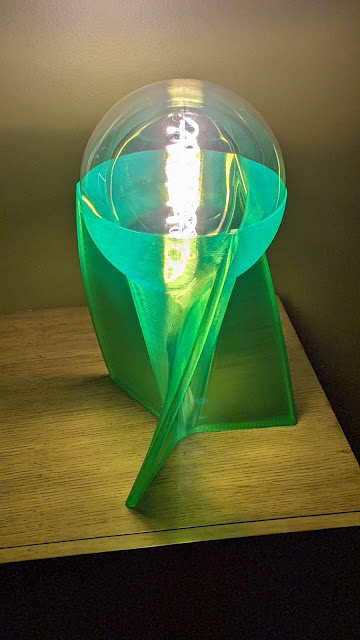
Power off.


Power on- the bulb socket is quite visible at this angle. View it from a little higher or lower and the socket all but disappears due to the way the print layers scatter light.


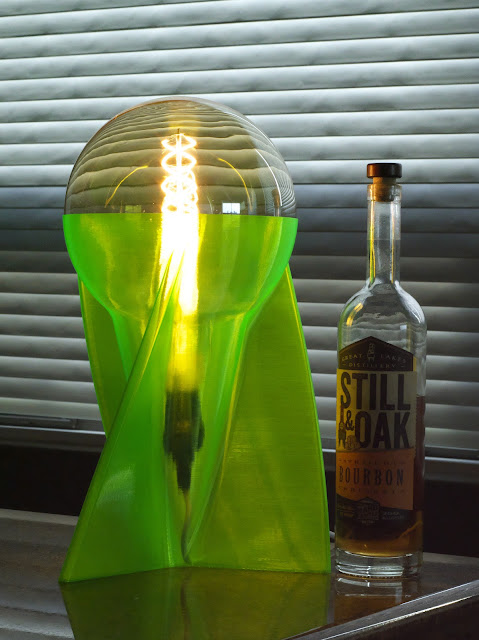
Bottle for scale...

I'll probably print a cone using opaque white filament to cover the socket for this lamp. I'm also going to try printing the whole thing in opaque filament to see what that looks like. I'll post pictures when I do.

The Fusion360 Step file is here. You'll need a 280x280x300 mm (or larger) print capacity machine to print it, and I recommend a 1mm nozzle. You'll find the lamp is saved as a solid object. In the slicer you will use vase mode which will have no infill, a single wall, and no top layers. I printed in PETG, used 3 or 4 bottom layers, and set the line width to 1.2 mm. The resulting print is quite sturdy and very tough. I drilled a hole between the fins near the bottom of the lamp to feed in the line cord because I thought it would look better than running the cord out through a hole in the edge of one of the fins.

Saturday, October 17, 2020

A Few Tips For Using Wi-Fi Enabled Light Bulbs

I've been making some lamps using cheap, Wi-Fi enabled light bulbs for a while and I've learned the hard way that there are a few things they don't tell you up-front about getting them working. You can save yourself a lot of trouble by following a few simple rules. These rules apply to every brand of RBG LED bulb.


1) They only work on 2.4 GHz Wi-Fi. If you have a dual band or triple band router, they will only connect on the 2.4 GHz band, so you have to connect your phone to the 2.4 GHz band if you want to control the bulbs from an app on your phone. See #3 below... If you have one of the newer routers that automagically assigns things to 2.4 or 5 GHz bands, you may have to set up a guest network specifically for 2.4 GHz light bulbs and similar IOT devices.

2) The SSID of the 2.4 GHz wireless network should not contain any Chinese characters and/or punctuation including spaces, underscores, or hyphens. Use a simple SSID like XYz1234. The SSID must not be hidden. You have to access your router's control panel to make changes to the SSID.

3) WPA2 security is OK. Set your router to use WPA2 on the 2.4 GHz network that the light bulbs will use.

4) If your phone runs a recent version of the Android operating system and you have a dual or triple band router, your phone will connect to one of the 5 GHz bands by default. You'll need to force it to connect to the 2.4 GHz Wi-Fi band/network to set up the lightbulb(s). You only need to do that for the initial set-up.

My Pixel 3 phone runs Android 11 and it connects to the fastest connection it can find which is one of the 5 GHz bands that my router uses. I had to install a couple apps in the phone to allow me to force it to connect to the slower 2.4 GHz Wi-Fi band that the light bulbs use. I installed "Wi-Fi analyzer" that shows all the Wi-Fi networks within range of the phone and "Wi-Fi connector library" that allows you to force the phone to connect to whatever network you want, in this case, the 2.4 GHz network.

5) If your phone uses a VPN when it connects to Wi-Fi, you'll have to disable it when you want to do the initial set-up of the light bulbs. 

My Pixel 3 uses the GoogleFi VPN.  I had to disable it when setting up the bulbs, and reenable it after I had programmed the bulbs. 

To be clear, after initial set-up, you can control the bulbs with the VPN enabled, and without specifically connecting the phone to the 2.4 GHz network. You only need to make the 2.4 GHz connection and disable VPN for the initial set-up, and each time you add another light bulb.

I use the Feit Electric app to control my bulbs, even though some are made under the label "Tuya".  They all show up and are programmable using the Feit Electric app.